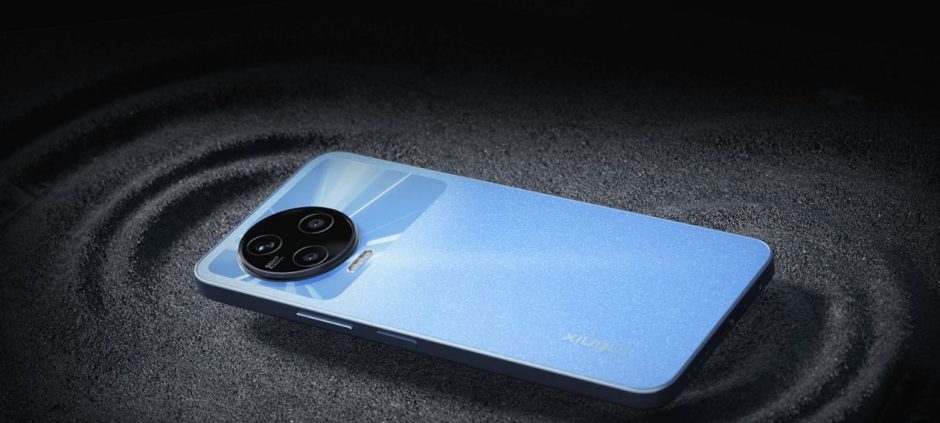
You have the Infinix Note 12, a popular and powerful phone in Pakistan. It looks great and works well. But are you using it to its full potential? This smartphone has many hidden features and settings that can make your experience even better. Many users only scratch the surface of what their phone can do.
This guide will show you the best tips and tricks for your Infinix Note 12. We will help you unlock features you might not know about. These tips will help you customize your phone, improve its performance, and make daily tasks easier. You do not need to be a tech genius to follow these steps. Let’s make your great phone even greater.
Why You Should Customize Your Infinix Note 12
Your phone is a personal device. It should work exactly how you want it to. The Infinix Note 12 runs on an operating system called XOS. This system is built on Android but has its own special features. Learning these features allows you to set up your phone for your own needs.
Customizing your phone can help you be more productive. It can also make your phone more fun to use. From changing how your home screen looks to making your battery last longer, a few small changes can have a big impact. This guide will focus on simple yet powerful tricks that every Infinix Note 12 owner should know.
Master Your Display and Home Screen
You look at your phone’s screen hundreds of times a day. Making it look and work better is a great first step.
1. Activate the Always-On Display
The Infinix Note 12 has a beautiful AMOLED screen. This means you can have an Always-On Display. This feature shows you the time, date, and notifications without you needing to turn on the whole screen. It uses very little battery.
- Go to Settings > Display & Brightness.
- Find and tap on Always-On Display.
- Turn it on and choose a style you like. You can pick different clock faces and colors.
2. Organize Your Apps with Smart Arrange
Is your home screen a mess of apps? XOS has a feature to clean it up instantly.
- Long-press on a space on your home screen.
- You will see an option for Smart Arrange.
- Tap it, and your phone will automatically group your apps into folders based on their type, like Social, Tools, and Games. It is a quick way to get organized.
3. Change Your Font and Icon Size
If you find the text or icons too small or too big, you can easily change them.
- Go to Settings > Display & Brightness.
- Here you will find options for Font size and Display size.
- Adjust the sliders until the text and icons are the perfect size for your eyes. This makes your phone much more comfortable to use.
Supercharge Your Performance and Battery
A fast phone with a long-lasting battery is what everyone wants. These tricks will help you get there.
4. Extend Battery Life with Power Marathon
Infinix has a special feature called Power Marathon. It is more than just a standard battery saver.
- Go to Settings > Power Marathon.
- You will see Power Boost and Ultra Power Saving modes.
- Ultra Power Saving mode is perfect for when your battery is very low. It limits your phone to only basic functions like calls and texts, but it can make your battery last for hours longer. Activate it when you are in an emergency and cannot charge your phone.
5. Use the Phone Master App
Your Infinix Note 12 comes with an app called Phone Master. This is your control center for phone health.
- Open the Phone Master app.
- Use the Junk Files cleaner to free up space.
- Use the Phone Cooler feature if your phone gets warm. It closes apps that are causing the phone to heat up.
- The App Lock feature lets you put a password on specific apps for more privacy.
6. Manage App Notifications
Too many notifications can be annoying and drain your battery. Take control of them.
- Go to Settings > Notification Center.
- Here you can see which apps send you the most notifications.
- Tap on any app, and you can turn its notifications off completely. Or, you can choose to hide them from your lock screen. This helps you focus and save power.
Curious about what’s trending? See the most popular and budget-friendly smartphones list for a quick roundup of top-ranking devices.
Unlock Smart Features for Easier Use
Your Infinix Note 12 has clever features that make using it faster and more intuitive.
7. Take Quick Screenshots with Three Fingers
Forget pressing button combinations. There is an easier way to take a screenshot.
- Simply swipe down on the screen with three fingers.
- Your phone will capture the screen. You can then immediately edit or share the screenshot. To enable this, go to Settings > Special Function > Action and Gesture.
8. Use Split Screen for Multitasking
Need to watch a video while chatting with a friend? Use the split-screen mode.
- Open the first app you want to use.
- Swipe up from the bottom of the screen with three fingers.
- Your screen will split into two. You can then select the second app you want to open from the list. This is a great way to multitask on the large screen of the Infinix Note 12.
9. Peek Proof for More Privacy
This is a unique feature to protect your privacy in public places. Peek Proof darkens most of your screen, leaving only a small bright window that you can move around. This makes it hard for people next to you to see what you are doing.
- Find the Peek Proof option in your quick settings panel (swipe down from the top).
- Tap it to activate. You can adjust the size and brightness of the window.
Enhance Your Gaming Experience
The Infinix Note 12 is great for gaming. These features make it even better.
10. Game Mode and the Dar-Link Engine
Infinix has a dedicated Game Mode to improve performance.
- Go to Settings > Special Function > Game Mode.
- Make sure it is turned on. You can add your games to the Game Space.
- When you launch a game from Game Space, the phone optimizes its resources. It blocks notifications and uses the Dar-Link Engine to improve graphics and touch response. This gives you a smoother and more immersive gaming session.
11. Use the Gaming Assistant Panel
While you are in a game, swipe in from the side of the screen. This opens the Gaming Assistant Panel. From here, you can quickly reply to messages, take screenshots, record your gameplay, and more, all without leaving your game.
By trying these tips and tricks, you can truly master your Infinix Note 12. You will get better performance, longer battery life, and a more personalized experience. Take some time to explore these settings and make your phone work for you.